
Add and edit
The edit screen is modelled on the WordPress classic editor: a wide content column and a 300px sidebar for publishing.
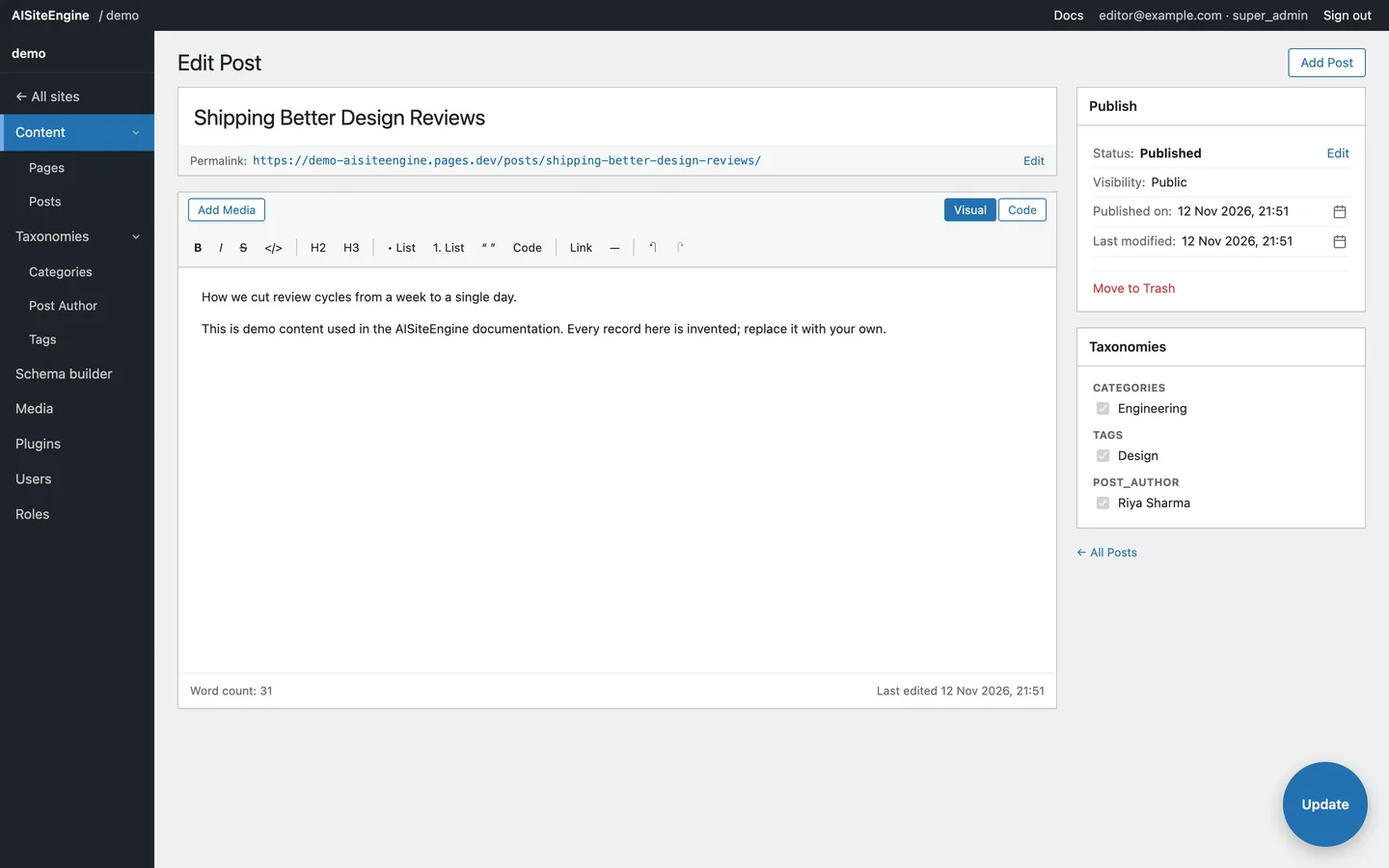
Header
Section titled “Header”- Edit
tells you what you are editing. - Add
creates a new record of the same type.
Title and permalink
Section titled “Title and permalink”The title sits at the top in a large field. Under it is the permalink — the public URL this content will have.
- Click Edit next to the permalink to reveal the slug field.
- Change the slug (the URL part after the type).
- Click Done to collapse it again.
The editor
Section titled “The editor”Above the writing area:
- Add Media inserts an image from the media library.
- Visual / Code switches between the rich-text editor and the raw HTML view — see Visual and Code.
The toolbar covers bold, italic, strike, inline code, H2/H3, bulleted and numbered lists, quote, code block, link, horizontal rule, undo and redo.
The Publish box
Section titled “The Publish box”| Row | What it does |
|---|---|
| Status | Published or Draft; click Edit to toggle |
| Visibility | Public (more options later) |
| Published on | The creation timestamp |
| Update / Publish | Saves everything |
| Move to Trash | Soft-deletes the record |
The Taxonomies box
Section titled “The Taxonomies box”Shows the terms attached to this record, grouped by taxonomy. Editing terms happens under Taxonomies.
Saving
Section titled “Saving”Two ways, same result:
- the Update button inside the Publish box;
- the floating Update button at the bottom-right of the screen.
While the save runs, the button shows a spinner and Saving…. When it finishes, a green ✓ Saved toast appears
above the floating button and fades after a couple of seconds.
The footer of the editor shows the word count and the last edited timestamp.